Loom Multi Cheat Installation Guide
Setup Guide
⚠️ Before you start — please read. This software requires Secure Boot and HVCI (Memory Integrity) to be turned off. These are Windows security features. You can turn both back on at any time (see the end of this guide).
Requirements
- Windows 10 or Windows 11
- Administrator access to your PC
- A few minutes and one reboot
1. Download the loader
Once downloaded, leave it somewhere easy to find (e.g. your Desktop or Downloads folder). Don't run it yet — complete the steps below first.
2. Complete the setup requirements
You need to turn off two things: Memory Integrity (HVCI) in Windows, and Secure Boot in your UEFI/BIOS.
2a. Turn off Memory Integrity (HVCI)
- Press the Windows key, type Core isolation, and open it.
- Find Memory integrity and toggle it Off.
- When prompted, allow the change. Restart if Windows asks — you can combine this with the reboot in Step 3.
2b. Turn off Secure Boot
Secure Boot is turned off in your PC's firmware (UEFI/BIOS):
- Go to Settings → System → Recovery.
- Under Advanced startup, click Restart now.
- After restart, choose Troubleshoot → Advanced options → UEFI Firmware Settings → Restart.
- In the firmware menu, open the Boot or Security tab (wording varies by manufacturer).
- Set Secure Boot to Disabled. (sometimes set to Other OS)
- Save and exit (usually the F10 key).
💡 Can't find the setting, or it's greyed out? See Troubleshooting below.
Confirm it worked
After rebooting, press Windows + R, type msinfo32, and press Enter.
- Secure Boot State should read Off
- Virtualization-based security should read Not enabled (or Memory Integrity off)
3. Reboot
Fully restart your PC so both changes take effect. A full shutdown and power-on is best.
4. Enjoy
Run the Loader and listen to instructions, after your next reboot just open your game!
Troubleshooting
- Secure Boot option is greyed out: Set a BIOS/UEFI supervisor password first, or switch the Secure Boot mode to "Custom," then disable it.
- Can't get into the BIOS menu: Restart and tap your manufacturer's key repeatedly during boot — commonly Del, F2, F10, or F12.
- Memory Integrity won't turn off / says a driver is incompatible: Follow the on-screen prompt to resolve the driver, then retry.
- BitLocker recovery screen after changing Secure Boot: This is normal. Have your BitLocker recovery key ready (find it at account.microsoft.com/devices/recoverykey) before you start.
How to re-enable protection later
When you no longer need the software, it's good practice to turn these back on:
- Secure Boot: Repeat Step 2b, but set Secure Boot to Enabled.
- Memory Integrity: Go to Windows Security → Device security → Core isolation and toggle Memory integrity back On. Reboot.
Get the product
Everything in this guide, ready to buy.
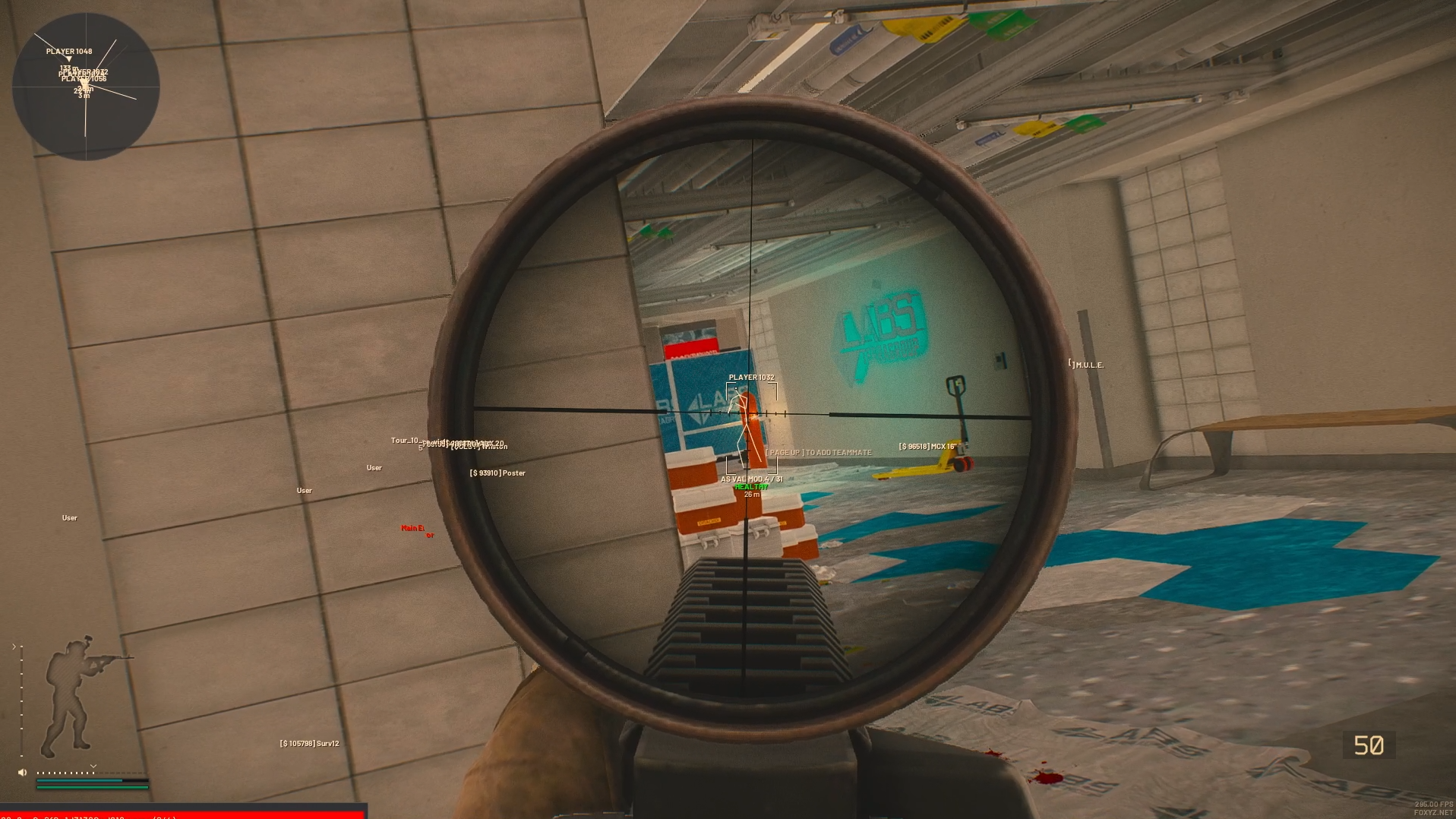
 Escape from Tarkov
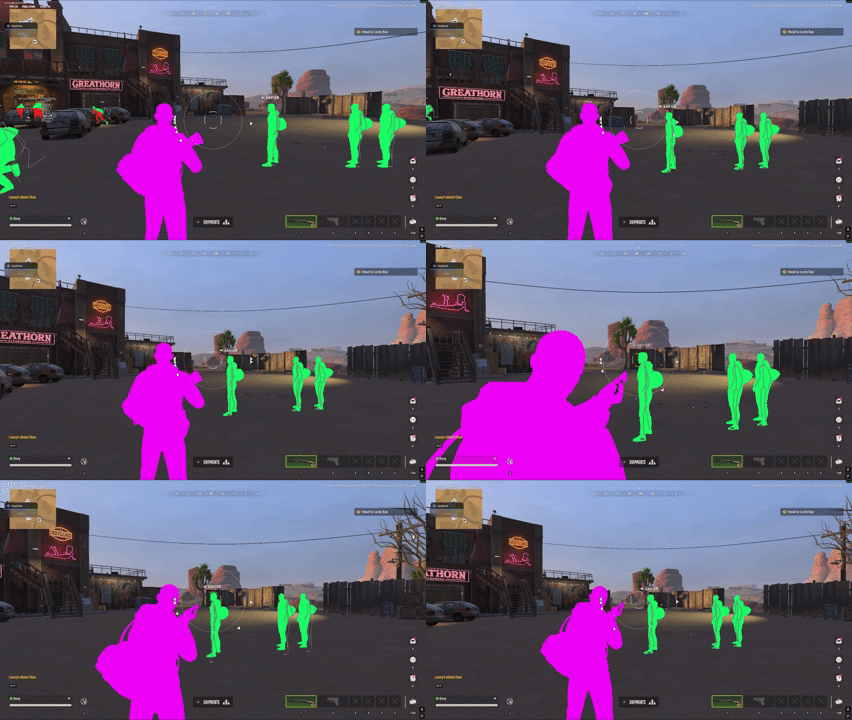
 Rob Run